The panel, screen by screen
What each screen shows and the question it answers.
The panel has seven screens, grouped into what is done every day and what is set up once.
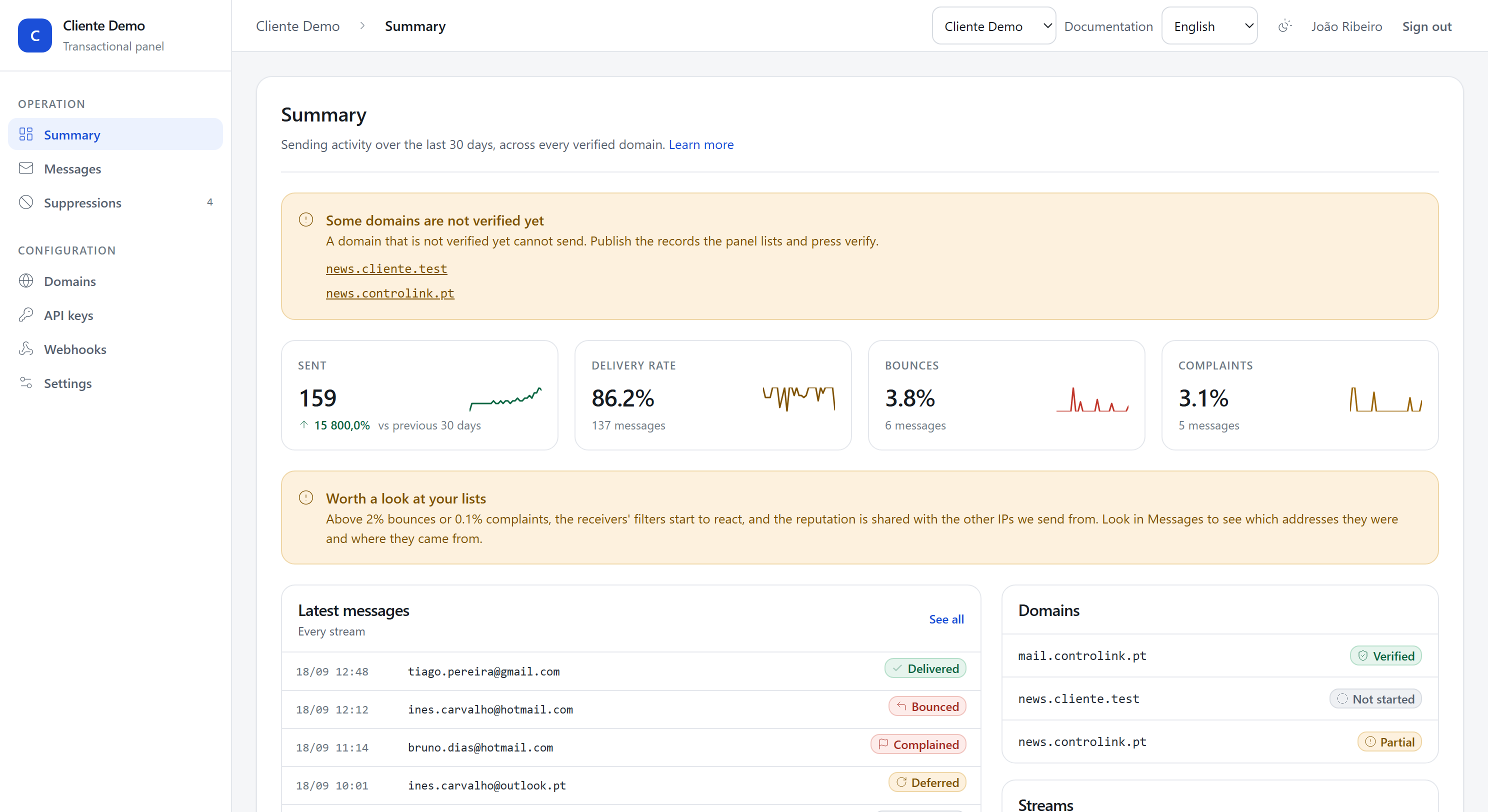
Summary
Answers: how is this account's sending doing?
Four numbers from the last 30 days: sent, delivery rate, bounces and complaints. Each carries a comparison with the previous 30 days and a chart with one point per day, where a blank day is still a day: a line drawn only through the days with sending would hide a week of silence, which is exactly what somebody looks for after an outage.
The thresholds worth watching: bounces above 2% and complaints above 0.1%. Past those, receivers' filters start reacting. The panel changes the colour of the number and does nothing else: nothing in this system pauses sending on its own, and a screen claiming otherwise would have somebody trusting a safeguard that is not there.
Below that, the latest messages, the domains with their state, the split per
stream, and the account quota: how much has gone out this hour and today,
and when each window opens again. The quota belongs to the account and not to
each key, so this is where it becomes clear why an integration started answering
429 with nobody having changed anything in it.
Messages
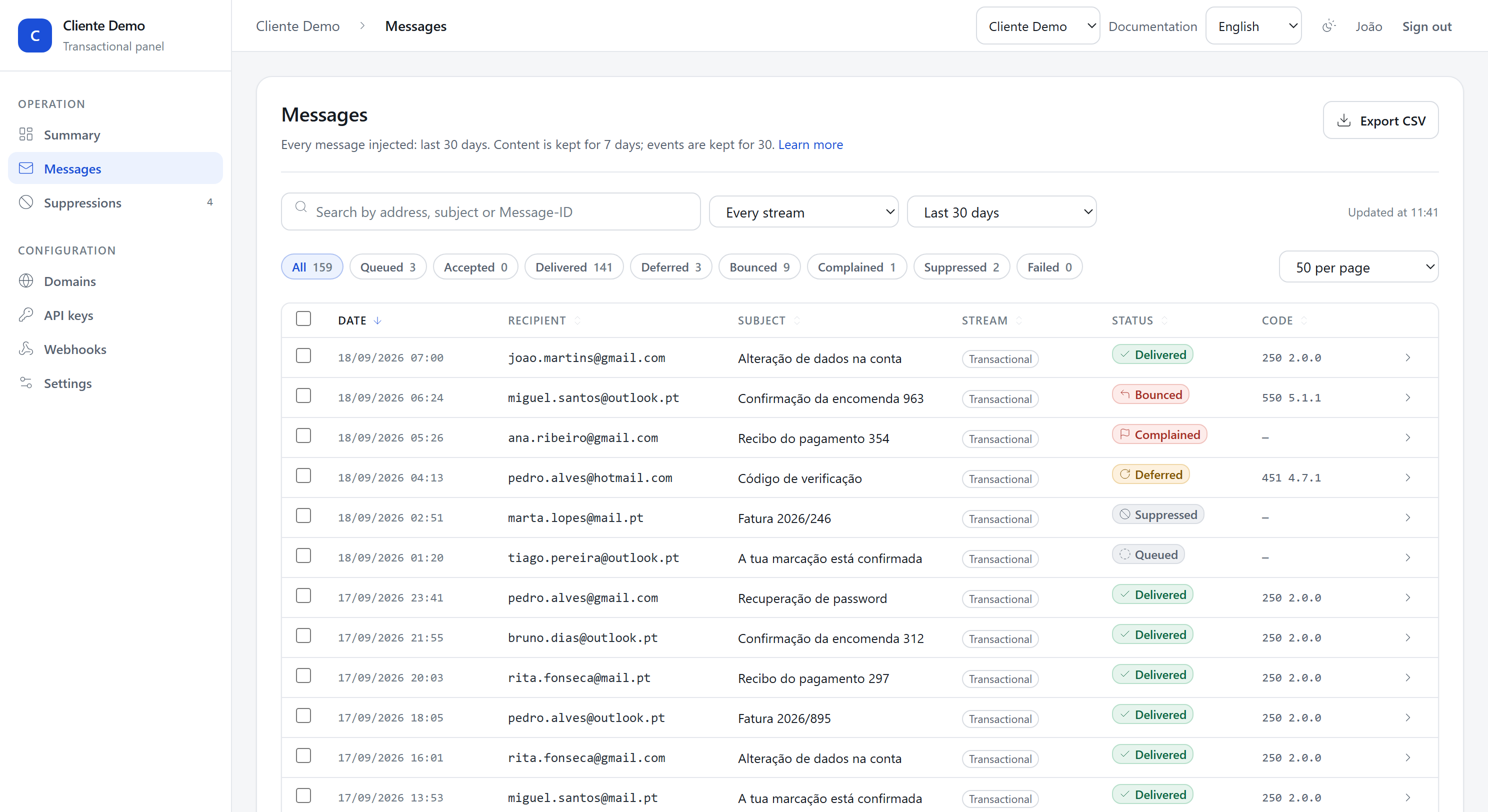
Answers: what happened to this message?
Every message injected, with a search by address, subject or Message-ID, filters by status and stream, and a period. Clicking a row opens the drawer with the full timeline in place, without reloading the list: the filters, the counts and where you were stay where they were. The address bar moves to that message, so it is still what you paste into a support ticket, and anybody arriving by that link gets the page with the drawer already open. There is also a CSV export that respects the filters you have set.
The checkboxes are there for one thing: suppressing several recipients at once. A bad import shows up as a page of bounces, and the fix is to stop sending to all of them at the same time.
Suppressions
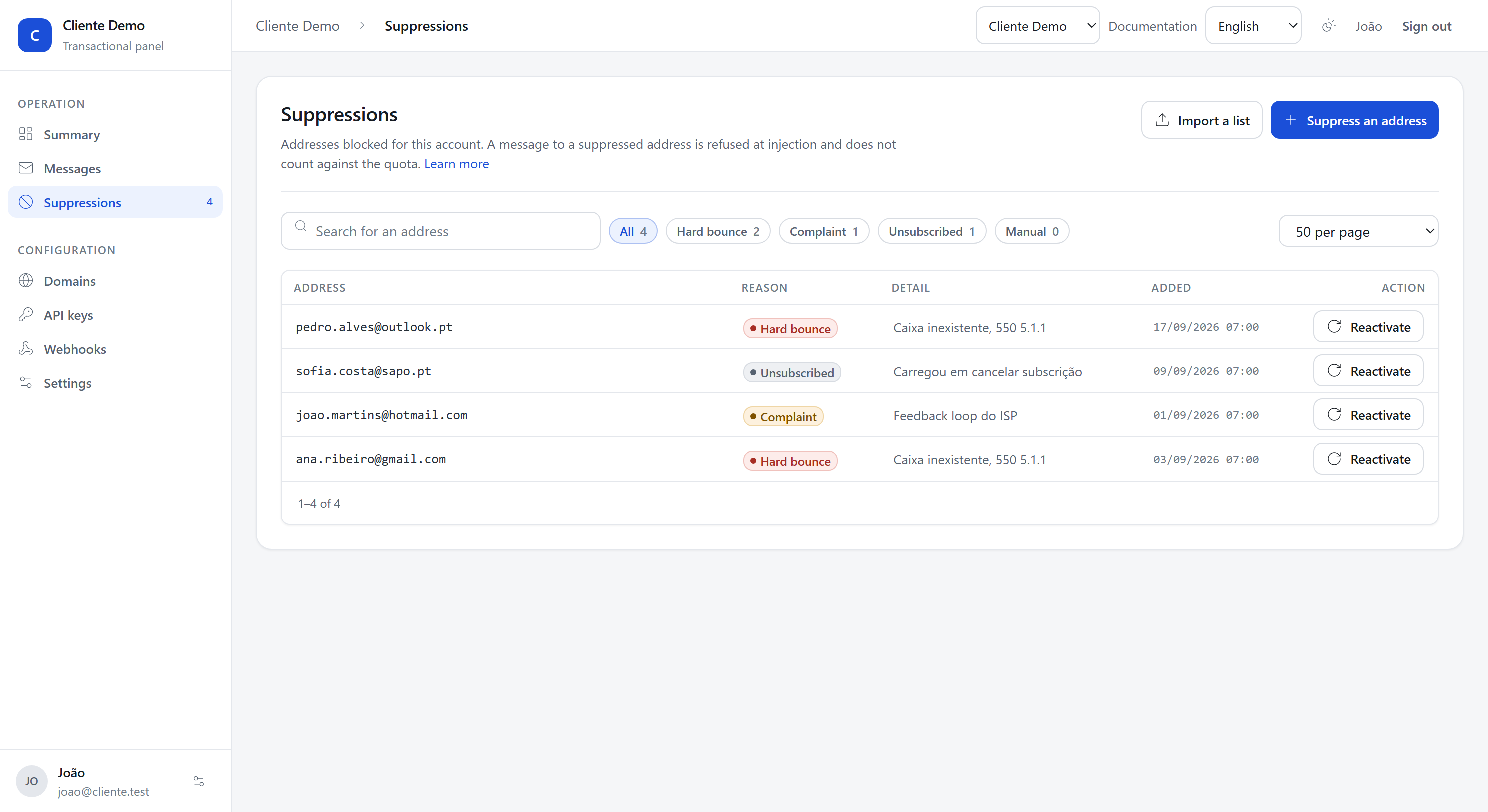
Answers: why is this address not receiving?
The account's list, with the reason and the date, and counts per reason. Rows blocked at platform level say so and do not offer a reactivate button. There is also the import for lists from other providers.
Domains
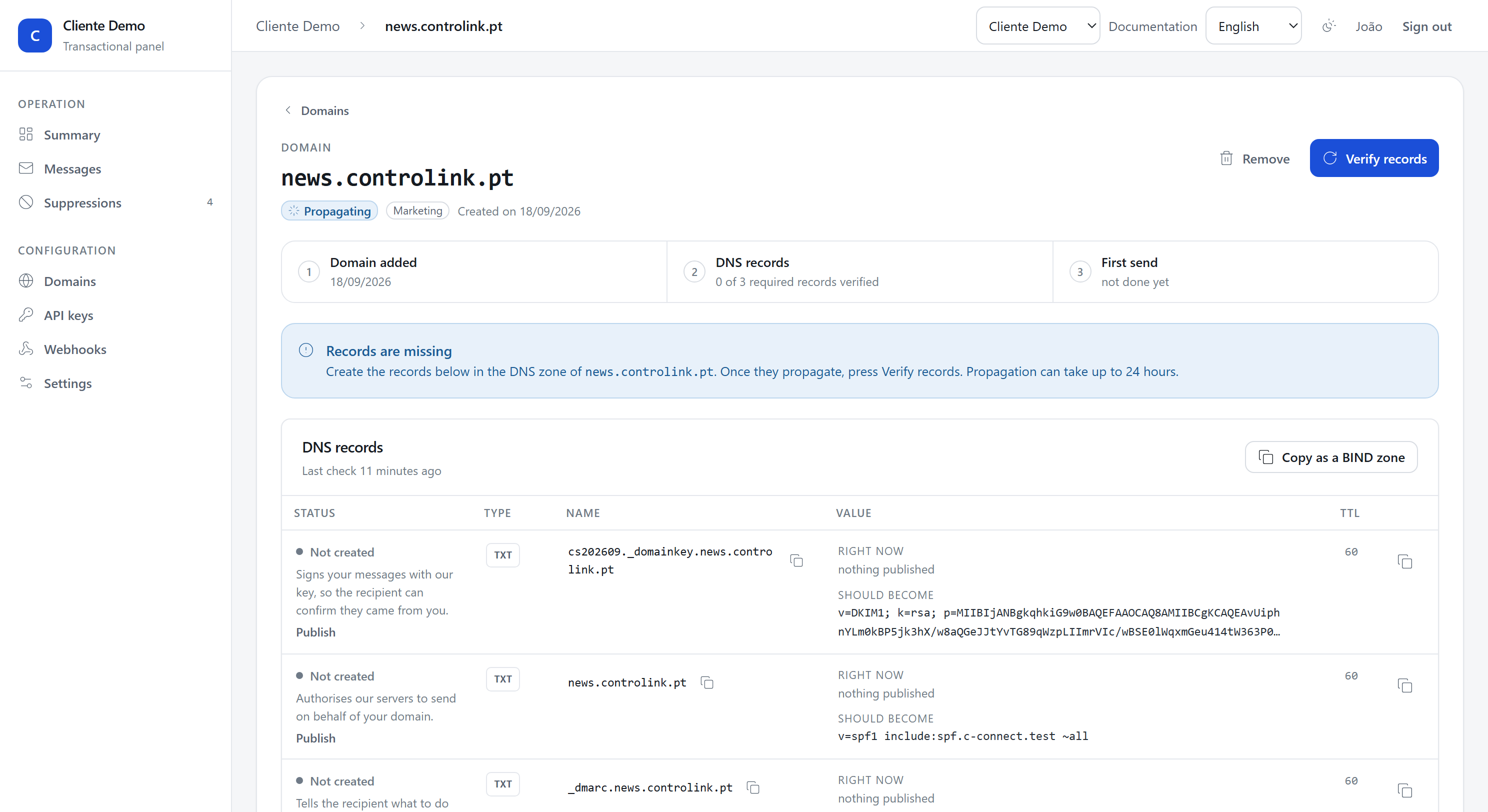
Answers: can this domain send?
The list with each domain's state and, on opening one, the wizard: the three steps, the DNS table with what is published right now beside what it should become, a copy button on every field, and the whole BIND zone in one click.
Further down, the DKIM key with its selector, and the DMARC reports card, which
says who has been sending with your domain in the From.
API keys
Answers: which credentials does this system send with?
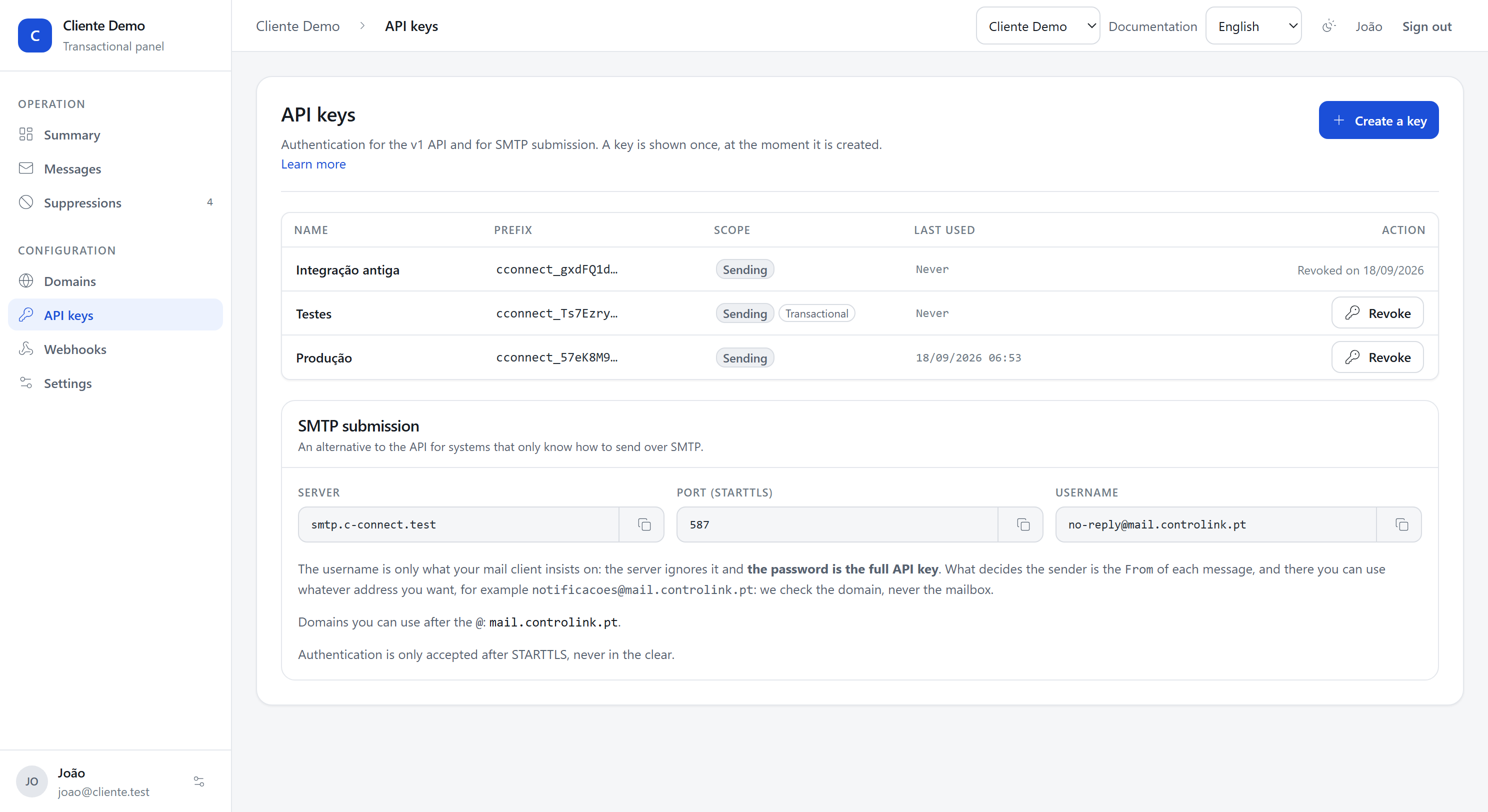
The keys, with the prefix, the scope and the date they were last used. A key is shown once, at the moment it is created. At the bottom of the screen, the SMTP submission settings, with the server, the port and the note that the username is ignored.
Webhooks
Answers: are the events reaching my system?
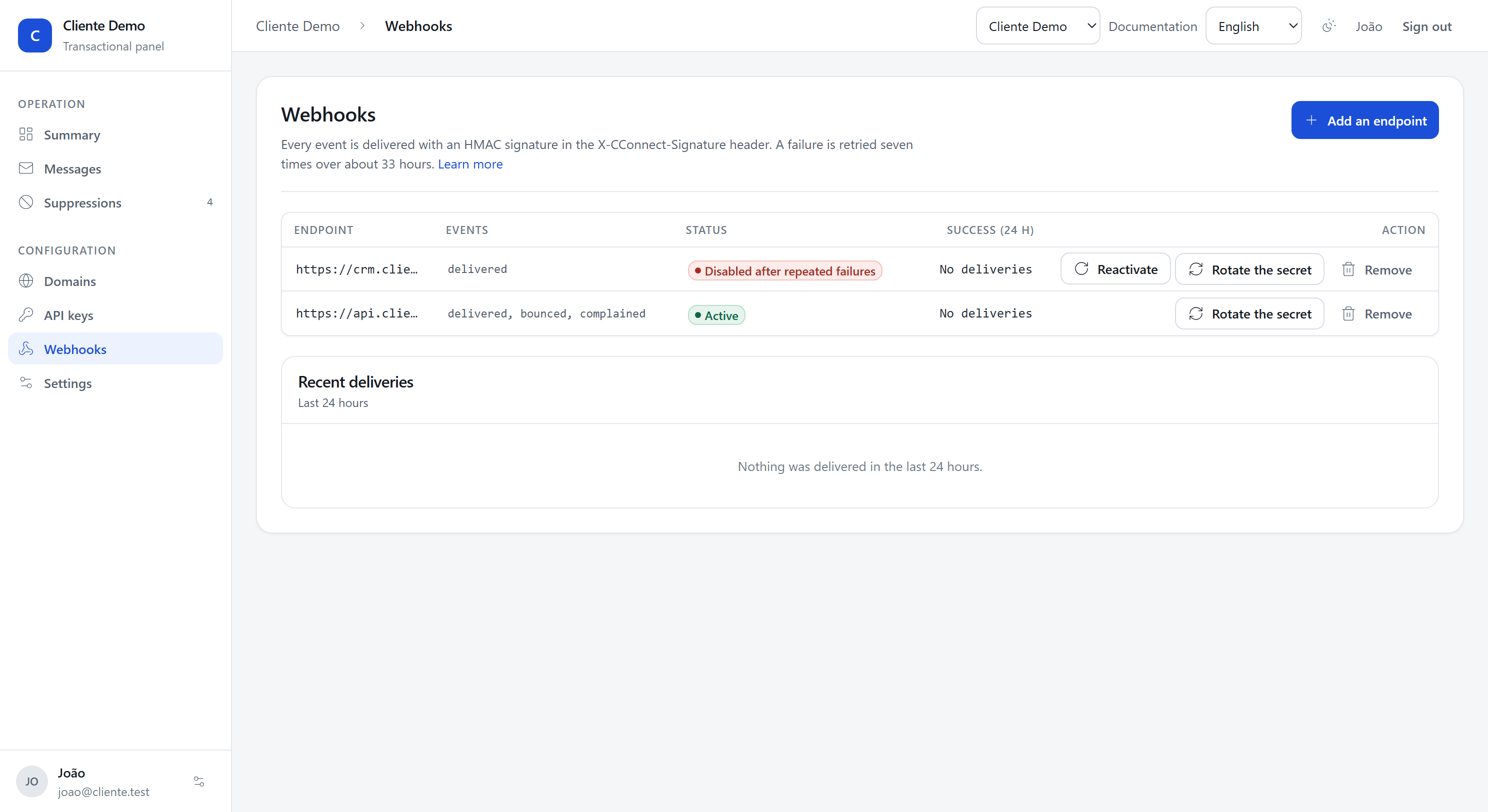
The endpoints, with their event types, their state and the share of deliveries accepted in the last 24 hours. A disabled endpoint says it was disabled after repeated failures, rather than simply going quiet. Below, the recent deliveries with their response code and the number of attempts.
Settings
Answers: how is this account configured?
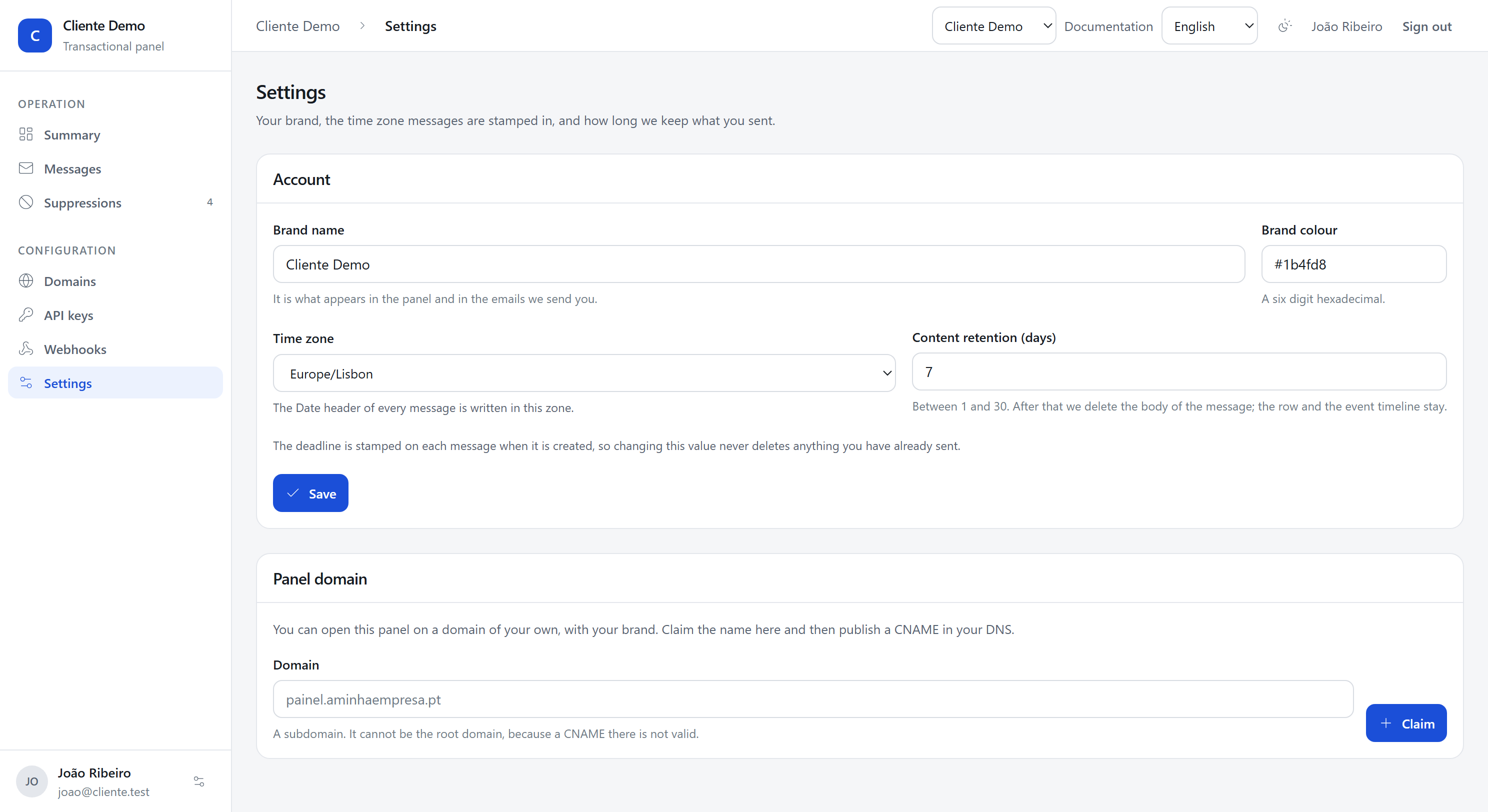
The brand name and colour, the time zone the Date header is written in, and
how many days we keep message content. Below, the panel's own hostname, which
has its own page at The panel on your domain.
What is on every screen
- The language switcher, top right.
- Dark mode, remembered in your browser.
- The account switcher, if you have access to more than one.
- The link to this documentation.